Start and Stop the Device
Select the ▸ play button to start executing the signal chain on the device. While running, select the ■ stop button to halt execution.
If the play button is disabled, check that your configuration has been sent to the device and has no unsaved changes.
Note: The signal chain continues running if you close the application — you must explicitly stop it.
View Live Stream Data
Use the Taps tab to view live streaming data from your signal chain.
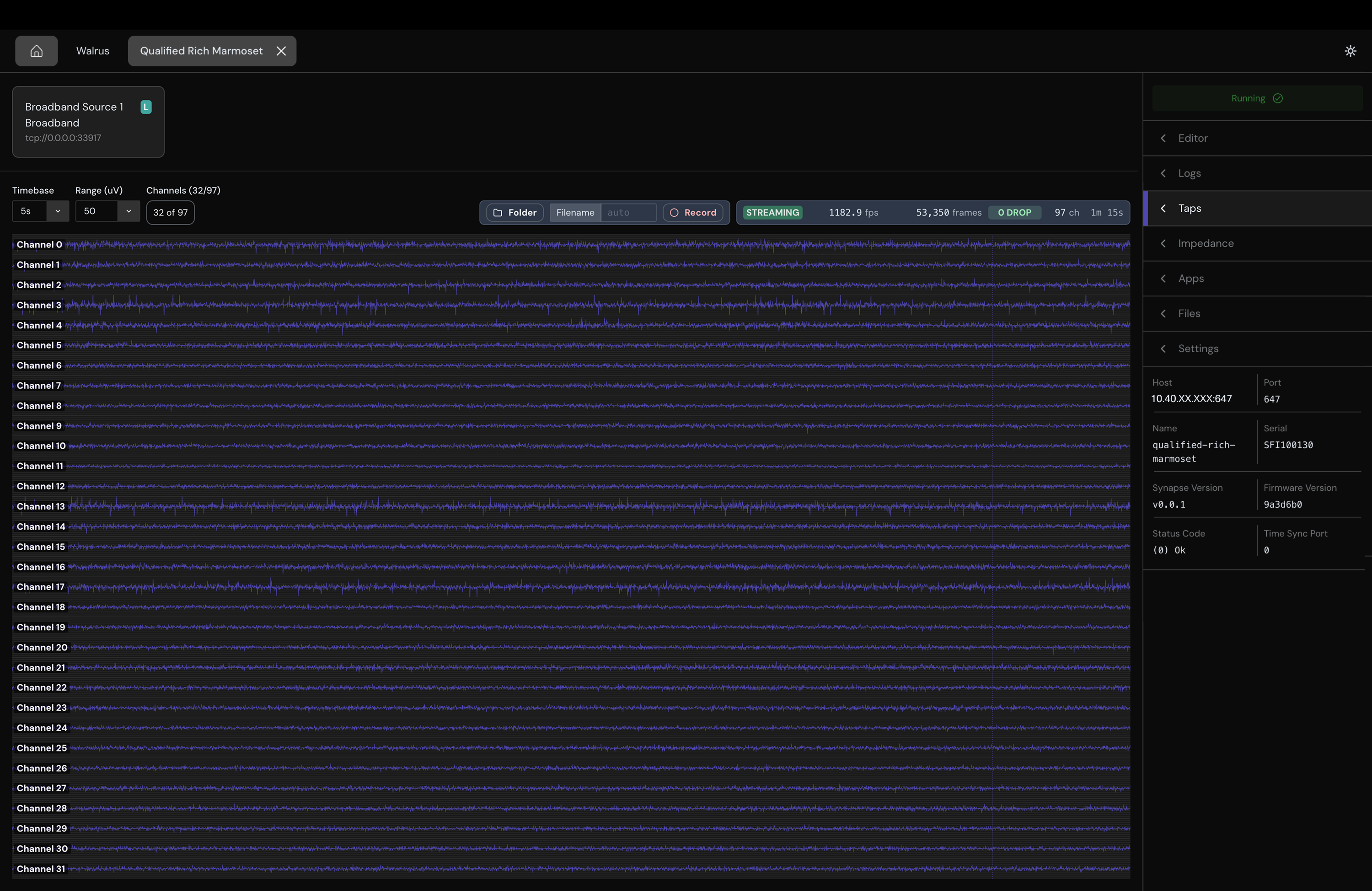
Available taps are shown as cards at the top of the panel. A badge indicates whether the tap is Local (L) or Remote (R).
Select a local tap to open the broadband plot panel, which renders a real-time multi-channel oscilloscope view. Data is displayed in microvolts (µV). Use the plot toolbar to adjust the Timebase, Range, Channels, and Colors displayed.
Select a channel label to start or stop listening to that channel through your system speakers.
If an impedance test has been run, impedance values are overlaid on each channel label.
Access Recordings
Use the Files tab to browse and download recordings saved by the DiskWriter node.
The first time you access Files, you'll be prompted for the device password. You can find it on your headstage display under Settings > Device Info > DiskWriter Pass.
- Navigate directories by selecting folder names. Use the breadcrumb path or the Home button to jump to a parent directory.
- Select the download icon next to a file to save it to your computer.
- Select the delete icon to remove a file or directory. Deleting a directory removes all of its contents recursively.