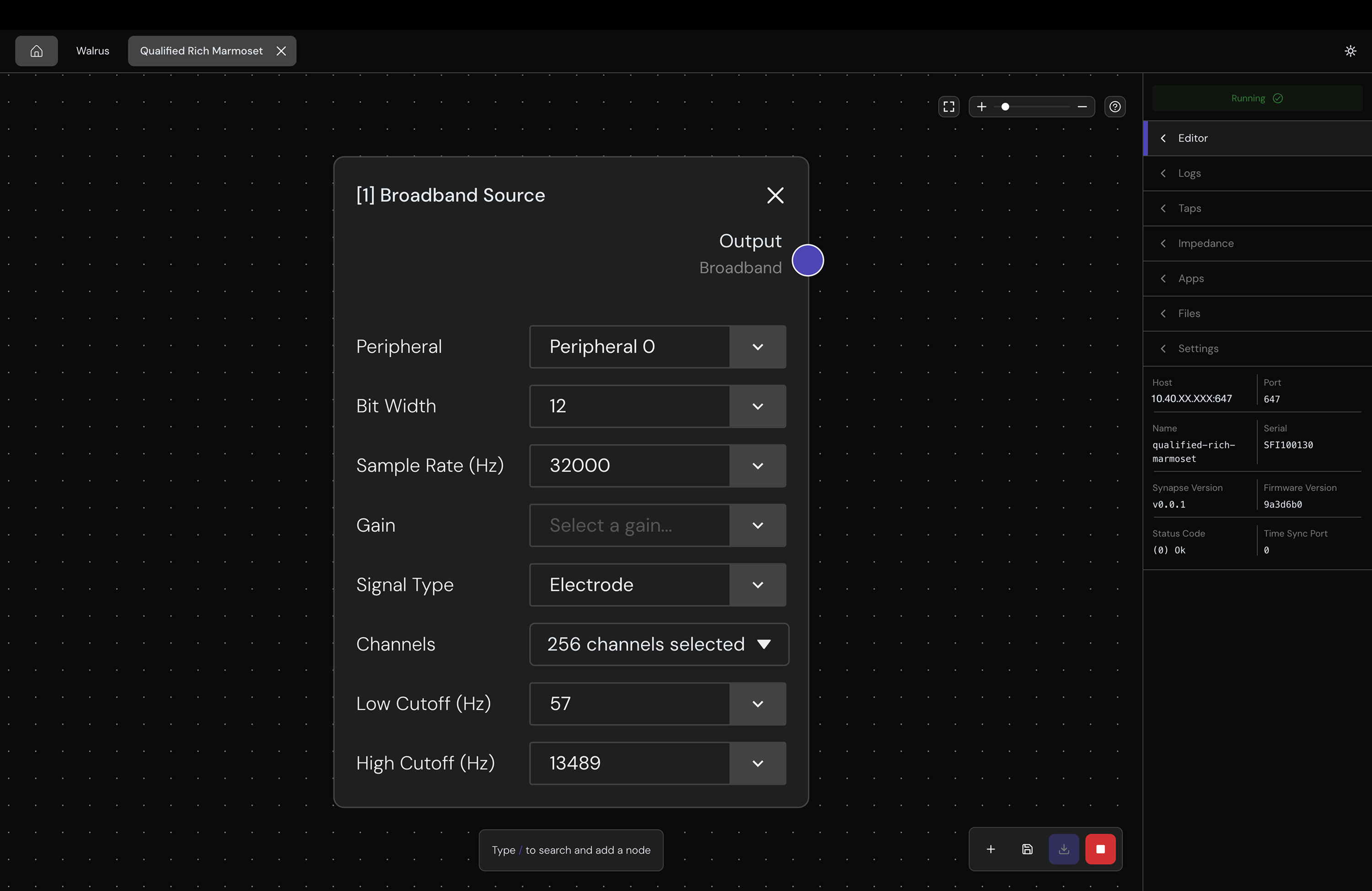
When you open a device, you'll see an editor view that represents the device's signal chain as a directed graph. From this editor, you can add and connect nodes, configure their settings, and send the configuration to your device.
Add Nodes
Select the + button in the bottom toolbar to see a list of all available node types. Select a node type to add it to the canvas.
You can remove a node by selecting the X button on its card.
| Node | Use |
|---|---|
| Broadband Source | Acquire broadband samples from a peripheral. |
| Spike Source | Acquire spike events from a peripheral. |
| Spectral Filter | Apply a low-pass, high-pass, band-pass, or band-stop filter to broadband data. |
| Spike Detector | Detect waveforms with a threshold or template matcher. |
| Spike Binner | Convert waveforms into binned spike trains. |
| Application | Run a deployed Synapse App with optional key/value parameters. |
| Disk Writer | Write its input to an HDF5 file on a device storage location. |
| Electrical Stimulation | Send electrical stimulation through a compatible peripheral. |
| Optical Stimulation | Send optical stimulation frames through a compatible peripheral. |
See the Node Reference for each node's configuration and data types.
Connect Nodes
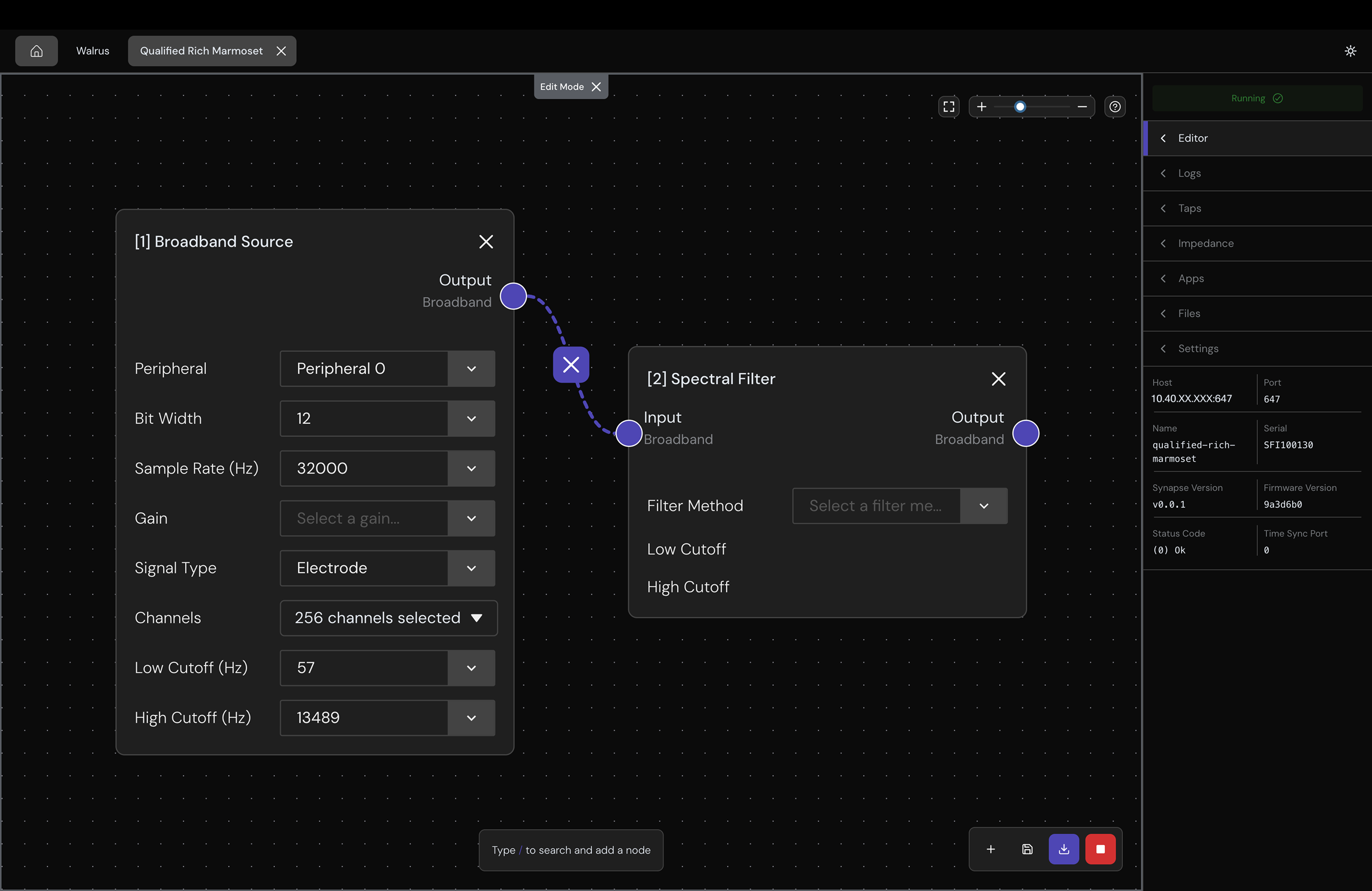
Connect nodes left to right by dragging the connection point of one node to the other. Connections are validated automatically, meaning you can only connect compatible signal types (e.g., a Broadband Source output to a Spectral Filter input).
To remove a connection, hover over it and select the X button that appears at the midpoint.
Configure the Device
Edits remain local until you select the ↓ update button. Update saves your draft signal chain as a configuration on your device using Configure, but it does not start it.
Configure is allowed only while the device is kStopped. Stop a running signal chain before selecting Update.
If the device configuration changes while you have an unsaved draft, the GUI will ask if you want to Submit Changes or Discard:
- Submit Changes replaces the device configuration with your draft.
- Discard reloads the configuration currently reported by the device.
Import and Export Configurations
You can export your current signal chain as a JSON file by selecting the Export button (save icon) in the toolbar. The filename includes the device serial number and export time.
To import a configuration, drag and drop the JSON file onto the canvas. It will load as a draft so you must select the ↓ update button to send it to the device.
See Configure and API Types for the underlying DeviceConfiguration schema.